
Learn more about the webinar and register below.
Whether it's your first time registering for a park program or your 50th, the following checklist and registration instructions were created to help make online registration the best experience possible. Take some time to review this information before registration day.
New With Summer 2026: We're excited to announce enhancements to the registration process effective with this summer's registration on April 20 & 21. Learn more below.
QUICK LINKS: Check List | Registration Instructions | Additional Information | View All Programs
Provide feedback, ask questions and walk-through the registration process during two webinar sessions led by Park District staff on Tuesday, April 14 at 12 pm and 6 pm, the day after summer camps and other programs are made available on the Park District website for viewing. Registration begins the following week, April 20 & 21. The hour-long webinar will discuss how to create an account and navigate our registration website, utilize the new searchable map feature to find a camp, and add programs to your wish-list to facilitate registration.
Registration for the webinar is encouraged. You can submit questions and suggestions for the webinar when registering.
Register for the 12 pm Webinar
Note: The webinar will be recorded and posted here after April 14.
A new map feature on the registration site allows you to view nearby day camp options and other programs, and easily discover alternatives if your first choice is full. If you are not certain of the name of a park(s) near you, try filtering by type of activity (such as “camp”) and using the map to zoom into your area. Note that the pins on the map are more precise and accurate as you zoom in closer to them. Additionally, you can use the "Open Spots" filter to view only programs that have spots available.
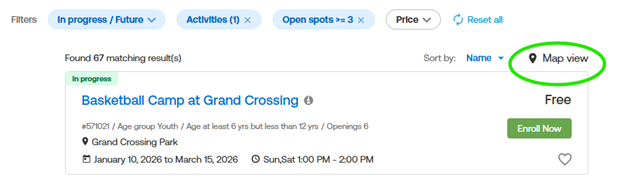
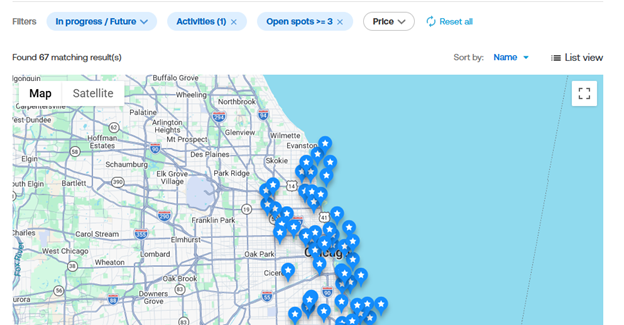
The registration instructions have been updated to be more extensive, and highlight key information such as:
- Program search and filter options, including filtering to see only programs with available spots
- Viewing program search results on the new map (see item above)
- Registering multiple children in the same program
View the full set of registration instructions below: Registration Instructions
New "High Demand" icon and messaging on the registration site will flag popular camps that are likely to sell out, allowing you to select alternate camps before registration opens.
Checking your account login and password before registration day will allow you time to contact us if you experience any problems. If you are registering for the first time, an account is needed to register. Save time and set up your account prior to registration day, and make sure to add all persons who you plan to register on your account.
This feature saves time on the first day of registration by allowing you to search for programs and save them to your wish list. You are not saving actual slots in the program- so this does not guarantee a spot in a program. If you plan to register more than one child in an activity, save the activity in your wish list prior to registration and once you begin to register you can add the different children to the activity, one at a time. This doesn't mean separate receipts however. View the 'Add Multiple People to the Same Program OR Add More Programs' section from the registration instructions below, to see the quickest way to register two or more children for the same activity. Learn more about the wish list feature: Registration Wish List
The new design and functionality of the site allows for items to remain in your wish list from previous seasons. So if you don't have any need for activities from past seasons, delete them from your wish list to make it easier to choose the activities you want to focus on for this seasons registration.
New feature: Account gender option updates and preferred pronouns question.
- Account gender options now include male, female, and non-binary. To update this field; navigate to the Account Options page, choose "Manage Family Member." Click the name of the family member to be updated, and update the gender options from the drop down menu and click "save."
- An optional question about preferred pronouns has been added. Answer options include: she/her, he/his, they/them, she/they, he/they, and other. To answer this question, login to your account and click the "Change Answers to Questions" link. Look for this question under the "Account Creation Questions" section for each account holder.
Fields to check and update each year include school information, and child pick up information (who can/who can't pick up your child, and the ability for your child to walk home alone). To make these changes, follow the same steps listed above with the preferred pronouns question information.
To change any other account information, click on the "Change Personal Account Information" link. Note: address and date of birth changes have to be made in-person at a park, and proof of residency/age is required.
On Registration Day
Patrons may also use their mobile devices to register on our full site.
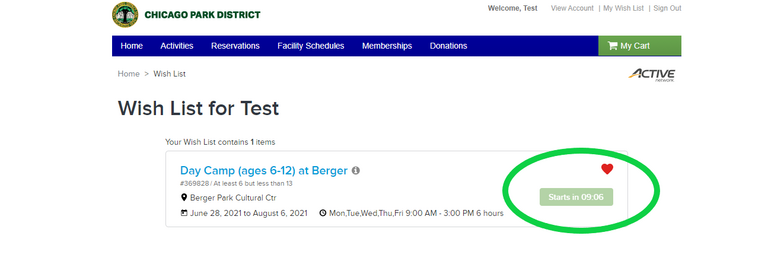
In the minutes leading up to the 9am start time, a countdown clock appears on the wish list page and on the activity page. At 9am the "Add to Cart" button will appear. After attempting to register for your first activity, feel free to utilize your wish list for any additional activities you wish to register for.
We continue to use a queue system that takes effect once the site has reached capacity for the number of patrons completing a transaction at one time. With the high level of registrations expected each season, you may get the queue screen (see image below) after you choose your first activity. If you do, please wait patiently until the system automatically takes you to the next page in the registration process. If you leave this screen, you will lose your spot in line.
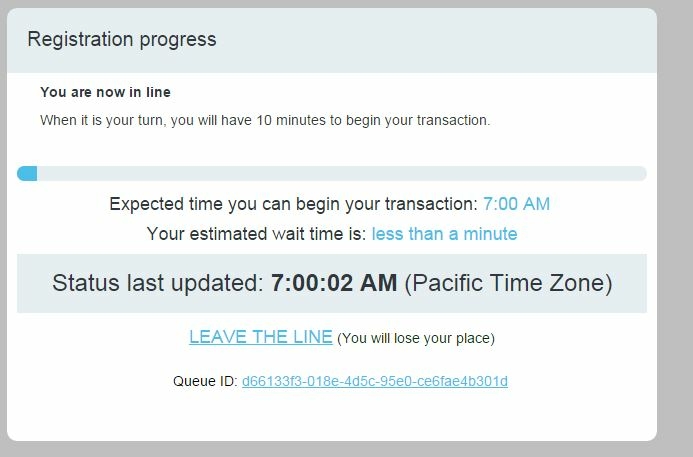
Note: Registration begins at 9am central time, however the queue screen displays in pacific time.
Many highly sought after programs are available in other parks across the city. If you can be flexible on your location, you'll have a greater chance of getting into the program you want.
If you don't get a spot in the program of your choice, you can utilize the waiting list feature (once all online and in-person spots have filled)- please note that this does not guarantee a spot in the program. Learn more about the waiting list feature: Registration Waiting List
Registration Instructions
Learn more about registering for a program online. Click on any of the topics below to view instructions with screenshots.
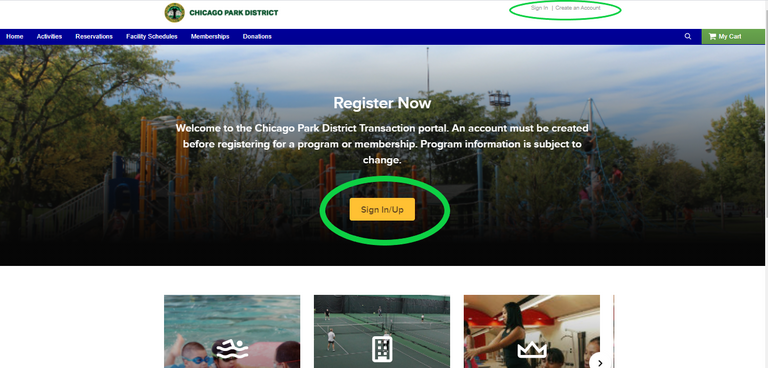
1. Click here to create a new account or login to an existing account.
|
Image
|
You should make the account for the parent/head of household first, then you will add accounts for your children to your family account. Fields with an asterisk* are required, including address, phone number, and emergency contact information; some additional information is required for child accounts.
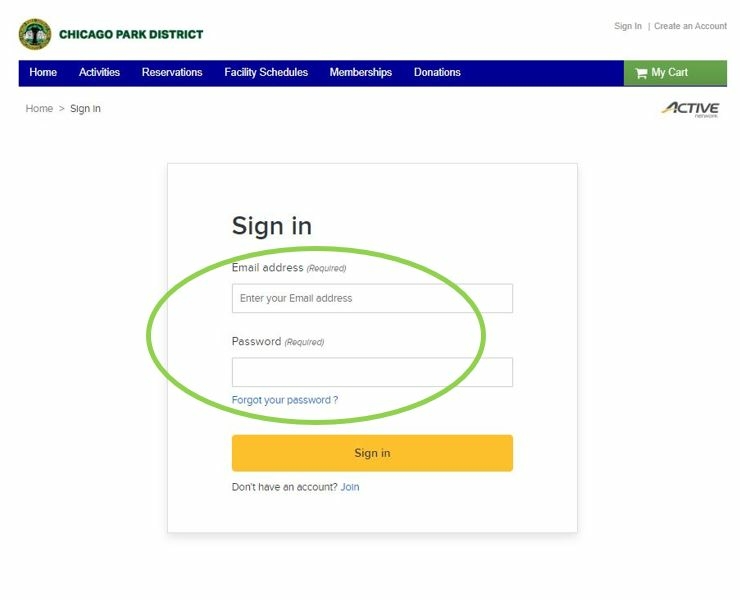
2. Enter login information
|
Image
|
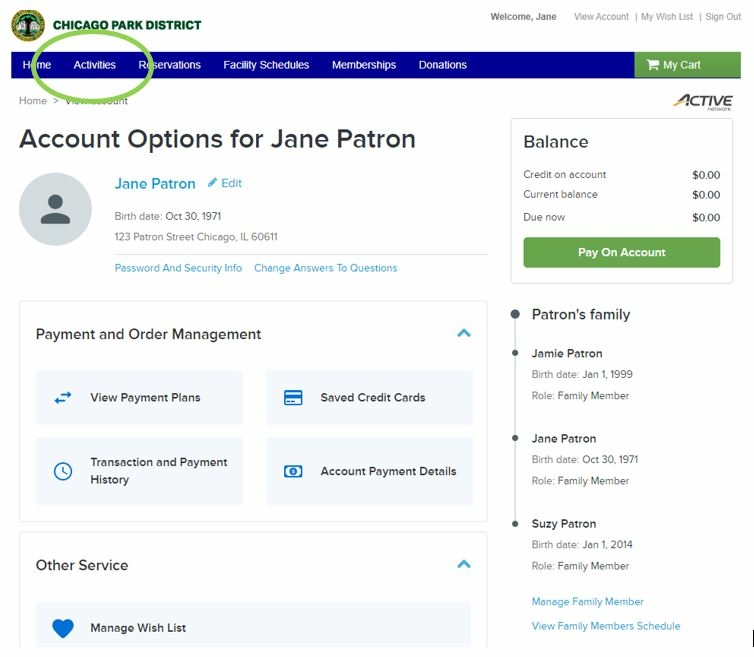
1. Go to "Activities" in the blue menu bar to start an activity search
|
Image
|
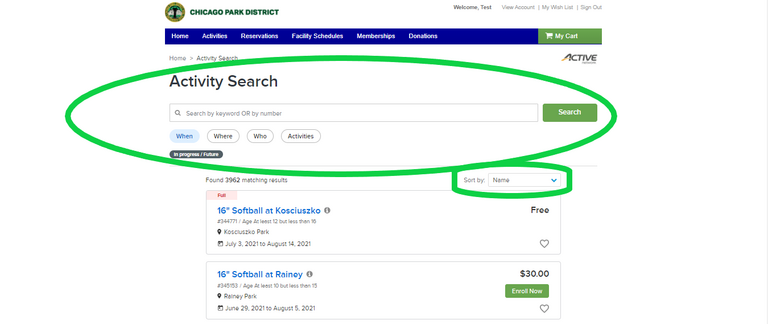
2. Search, Sort, and Filter to find the Activity you would like to add to your wish list. You can also search by keyword or activity number.
|
Image
|
Use the search options and filters to help refine the activity list, to find the programs you’re interested in. Be careful not to add too many filters, or your results may be too limited.

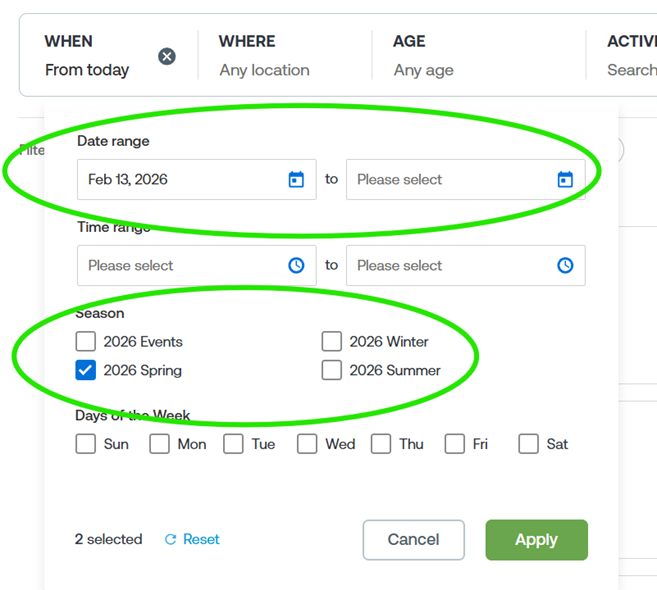
- WHEN
Under “When,” you may specify a specific date range, or simply use one of our Seasons. After making your selection, click “Apply."
- WHERE
Location (Center) is a list of all of our parks to choose from. Note that not all locations offer programming.
Community Area uses the official Chicago community area names.
After making your selection, click “Apply.”
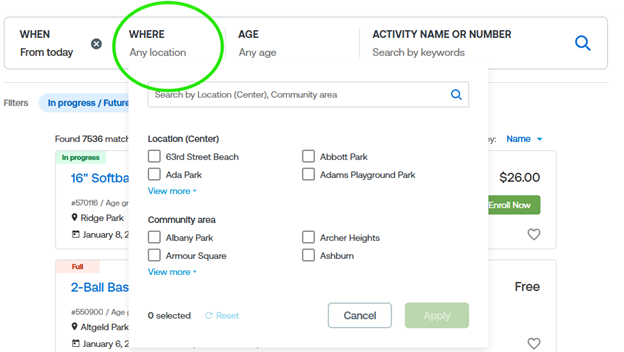
- AGE
You may enter a specific age or range that you are looking for. Note that for most of our programs, the participant must meet the stated age range as of the first day of class. Some exceptions are the Park Kids after school program, and most Summer Day Camps, where the participant must meet the age requirement as of September 1 to match the school year.
- ACTIVITY NAME OR NUMBER
If you know a specific activity name or number you are looking for, you may search directly for it here. Be careful if you don’t know a specific name – if you try to guess you may enter something that doesn’t match our terms, you may get no results. We suggest using a combination of Location and Age Range to narrow your search instead.
- FILTERS
The remaining filter options can help further refine your search results by category (such as sports, culture and arts, wellness), how many spaces are still open, or price. Note that if you selected a park Location or Community, the activity options here will be limited to only what is available at those locations.
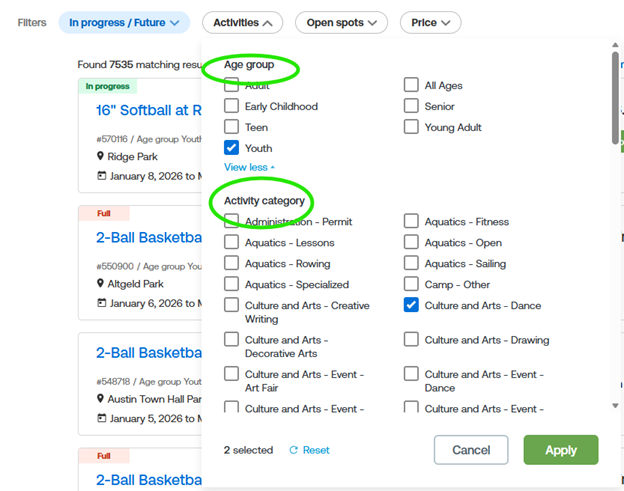
If you get few or no results, you may have applied too many filters, or filters that do not match and cancel each other out. Clear or remove some to try again.
Search results can be viewed either as a list, or using a map. If you are not certain of the name of parks near you, try filtering by type of activity (such as “camp”) and using the map to zoom into your area. Note that the pins on the map are more precise and accurate as you zoom in closer to them.
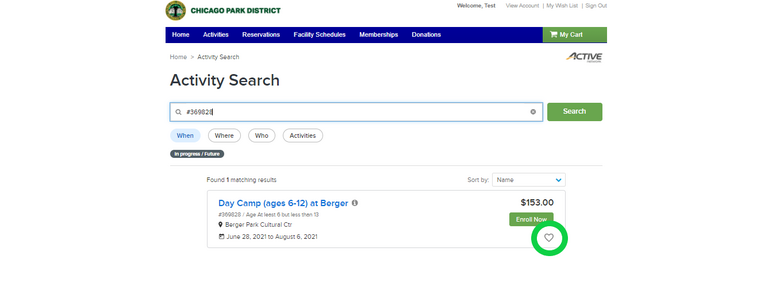
1. Once you have found the Activity you are interested in, select the "Heart" icon on the bottom right-hand side of the Activity box.
|
Image
|
2. Optionally, you may select a name or names from your family members to remind you who you are saving the program for.
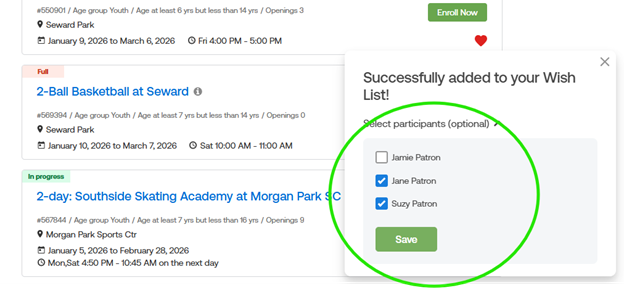
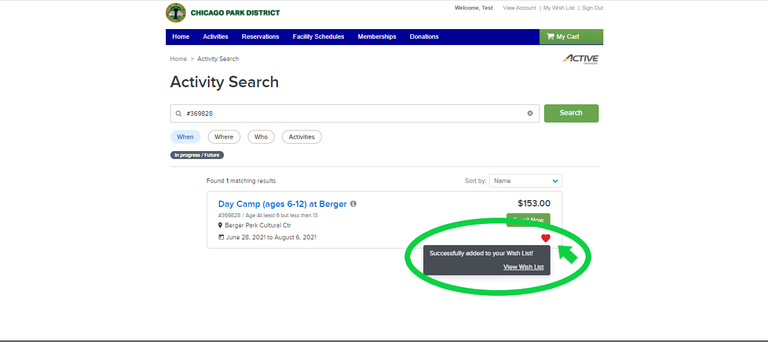
3. When the Activity is successfully added to your wish list, you will see a small pop-up that says "Successfully added to your Wish List!" and then will give you the option to click a link to "View Wish List."
|
Image
|
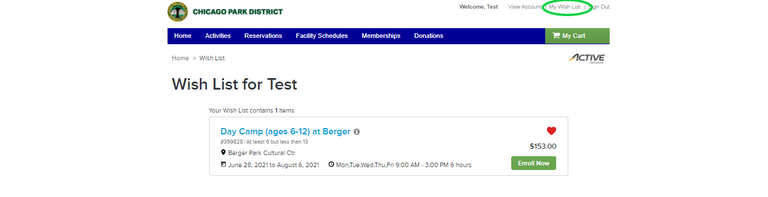
4. You can locate your Wish List at any time by clicking the "My Wish List" link in the navigation on the top right hand of your browser window.
|
Image
|
1. Click here to login to Active Net
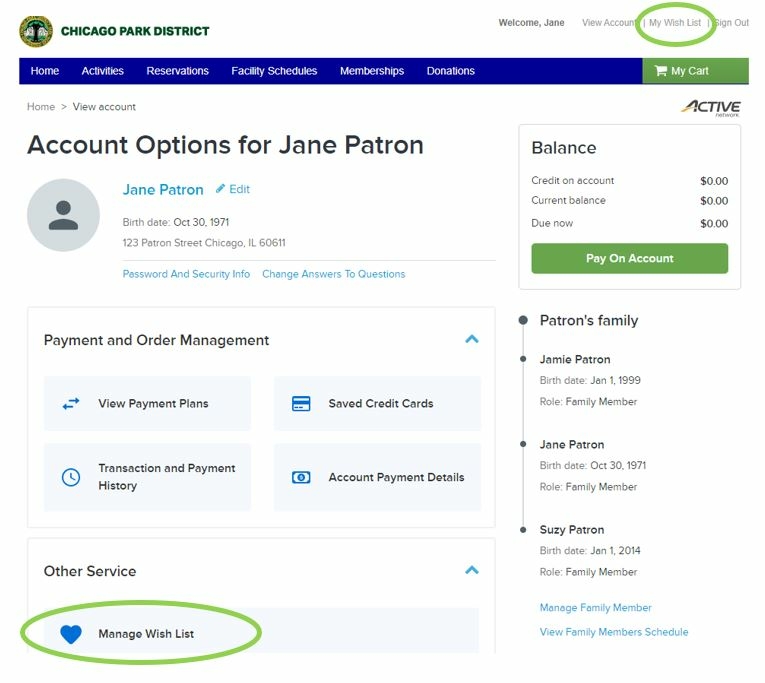
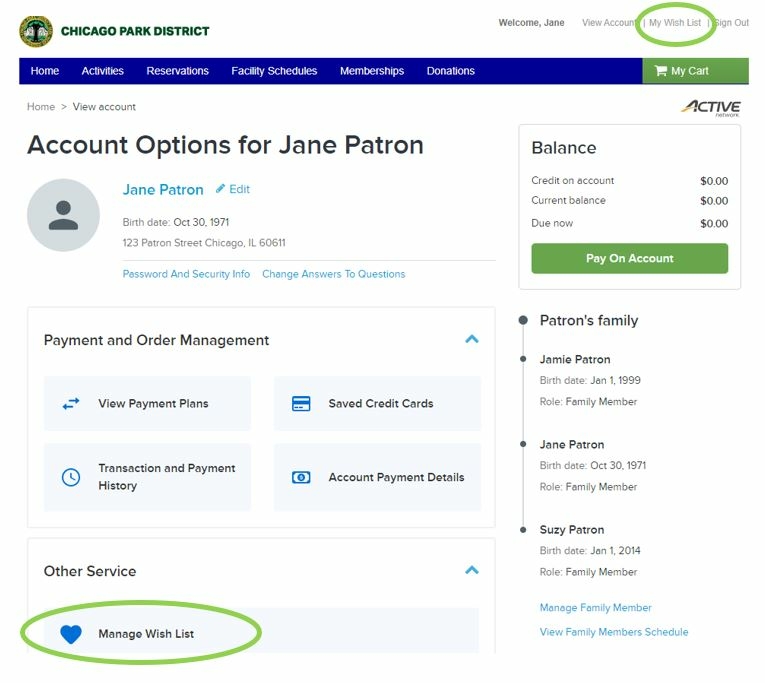
2. Click either "My Wish List" at the top, or "Manage Wish List."
|
Image
|
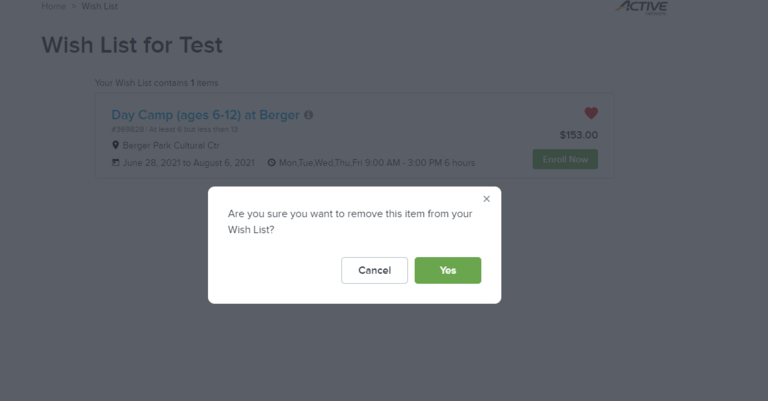
Note: Activities will drop off your Wish List automatically when the activity is over, or you can click on the "Heart Icon" again to remove an activity that you no longer need.
|
Image
|
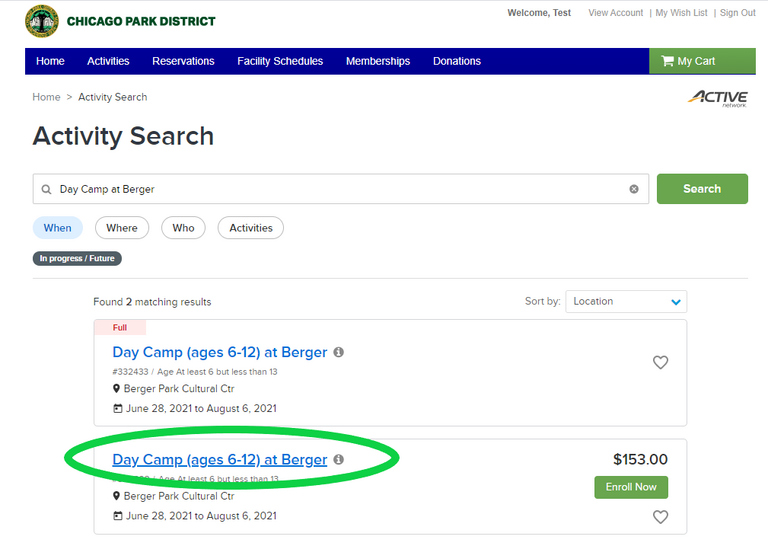
1. Click on the desired program name.
|
Image
|
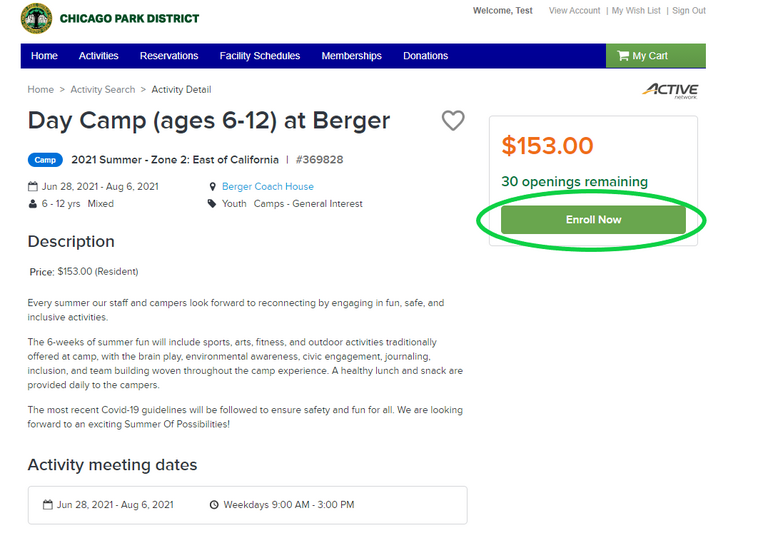
2. Review program information. To register for the program, click "Enroll Now."
|
Image
|
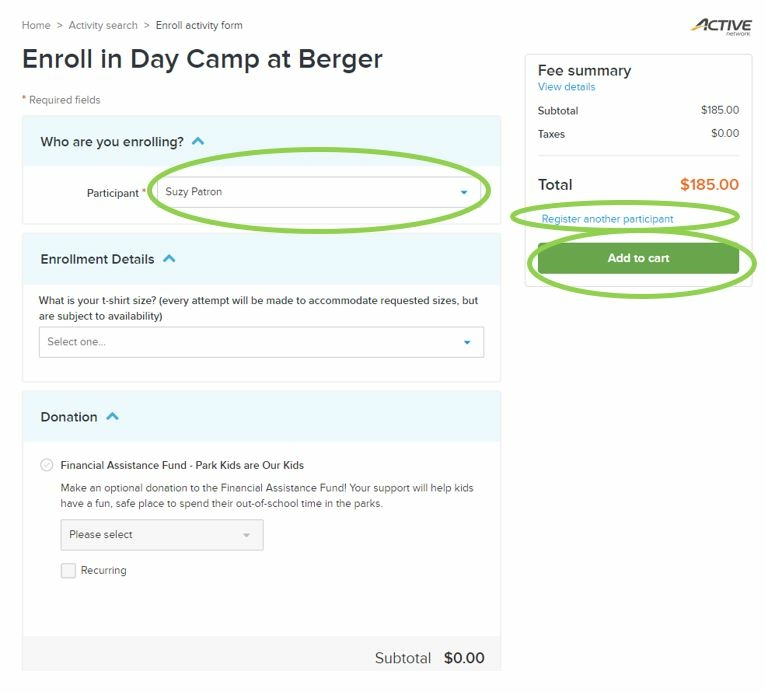
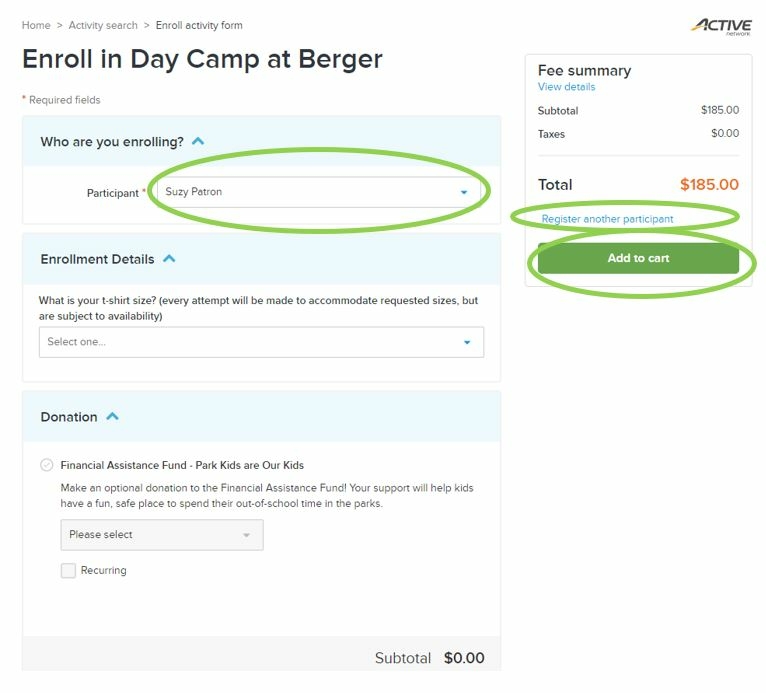
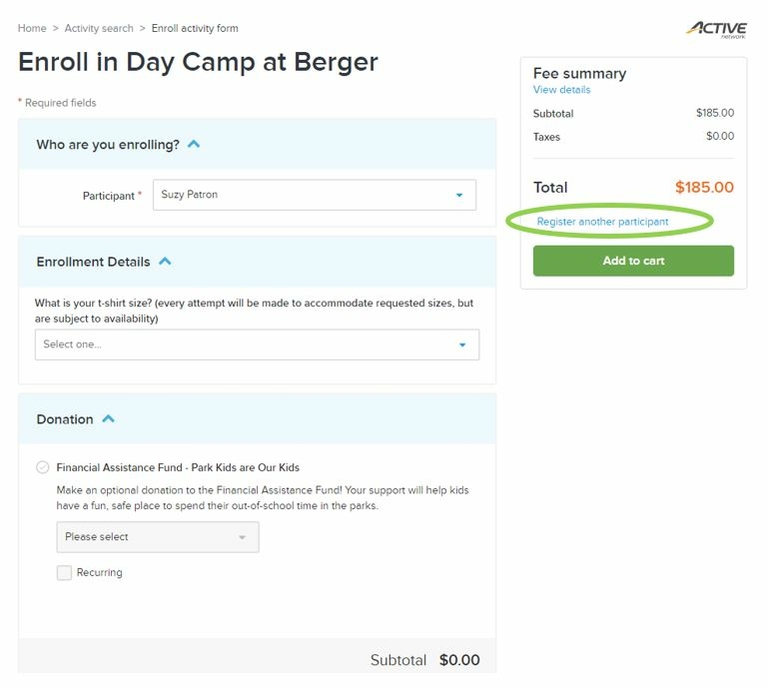
3. Choose the participant name from the drop-down list. (Note: greyed-out names are family members who do not meet requirements for the program, such as being the wrong age.) Custom questions (like t-shirt size) may appear, and also an optional donation will appear. Click "add to cart" to continue, or "register another participant" to add the current person to the cart and then add another family member to the same program.
|
Image
|
1. Click either "My Wish List" at the top, or "Manage Wish List."
|
Image
|
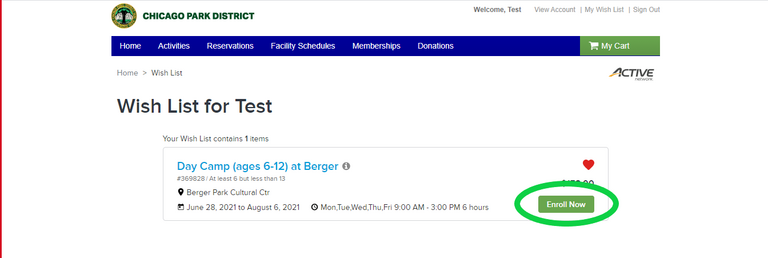
2. If you are registering on the first day registration opens, a countdown clock will appear for a few minutes before registration starts. It will change to the green “Enroll Now” button at the opening time.
|
Image
|
|
Image
|
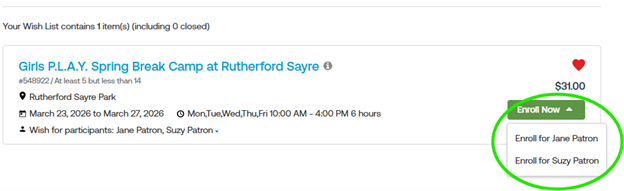
If you selected participant names when adding to the wish list, you can select one of them from the “Enroll Now” button to start the registration process:
3. Choose the participant name from the drop-down list. (Note: greyed-out names are family members who do not meet requirements for the program, such as being the wrong age.) Custom questions (like t-shirt size) may appear, and also an optional donation will appear. Click "add to cart" to continue, or "register another participant" to add the current person to the cart and then add another family member to the same program.
|
Image
|
After registering for your first program (see instructions above on how to register for a program), additional programs can be added to your shopping cart before checking out.
To add another family member to the same program:
- FROM THE "ENROLL" PAGE
If you’re registering more than one family member in the same program, the “Register another participant” link will add the first to your cart, then allow you to select another family member as before.
|
Image
|
- FROM THE "SHOPPING CART" PAGE
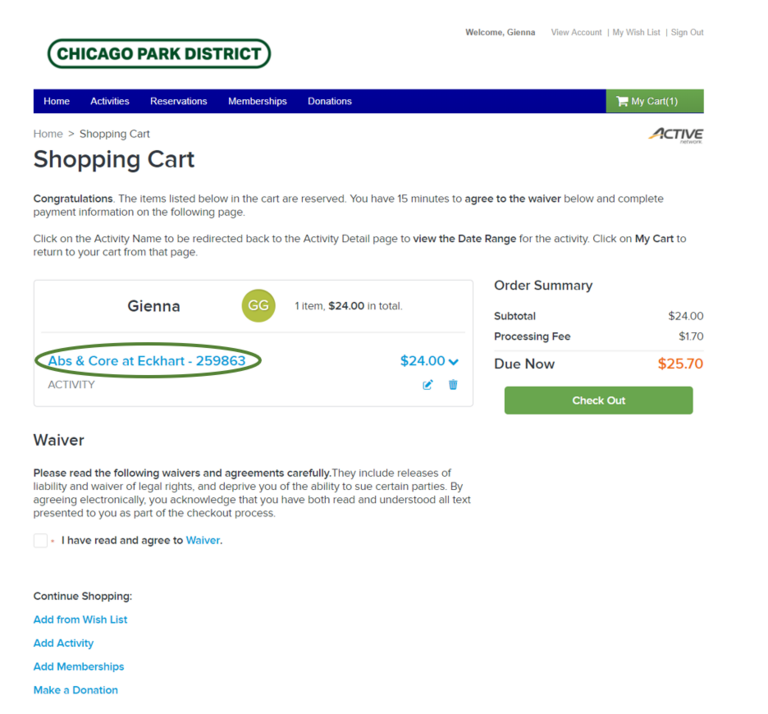
If you already have a program in your shopping cart and need to add another family member to it, click the program name to return to the program and select another participant.
|
Image
|
To add other programs, you may return to your wish list, or start a new activity search. You may also sign up for a membership for our Fitness Centers or Lap Swims, or make a donation. You may add as many transactions as you like before checking out.
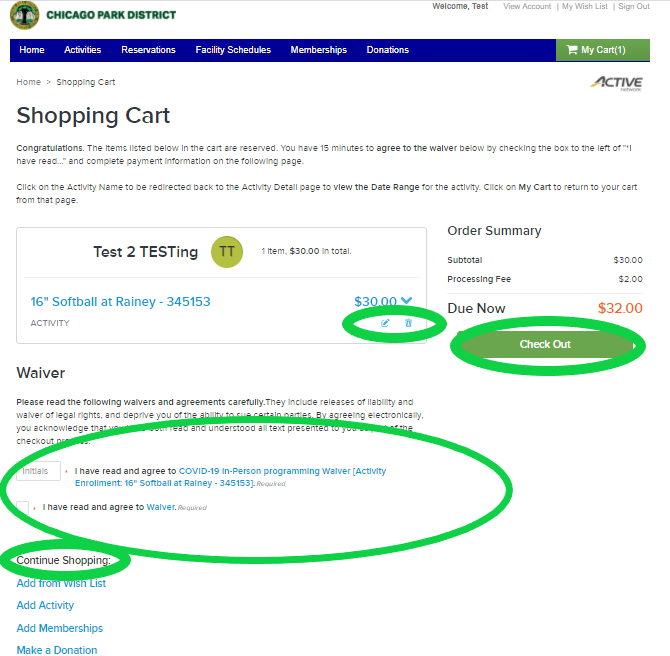
1. Review your cart- you may edit or remove each entry to your cart. Click "Waiver" to review our waiver text, and then click the checkbox to acknowledge that you have done so. Then you may click" Check Out" to proceed and pay; or use the Continue Shopping options to register for more activities. "Add from Wish List" will return you to your Wish List if there are more items in it you need; otherwise you may start a new activity or membership search with "Add Activity", or "Add Memberships." You may also "Make a Donation" to the Park District.
|
Image
|
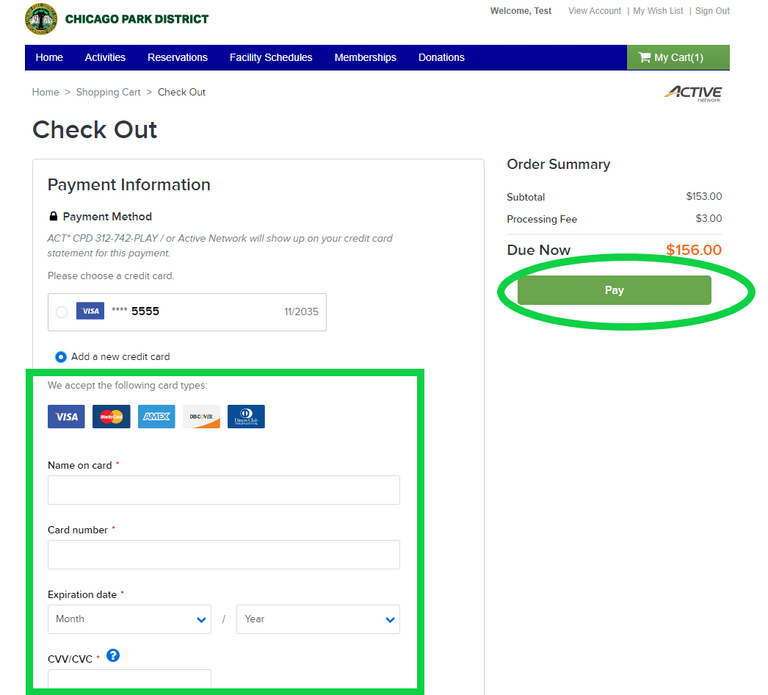
2. Enter your payment information. You can choose to save your credit card information to your account to save time in the future. When you are ready to complete your order, click "Pay." The following credit cards are accepted for online registration: Visa, Mastercard, Discover, and American Express. Apple Pay and Google Pay are also accepted.
|
Image
|
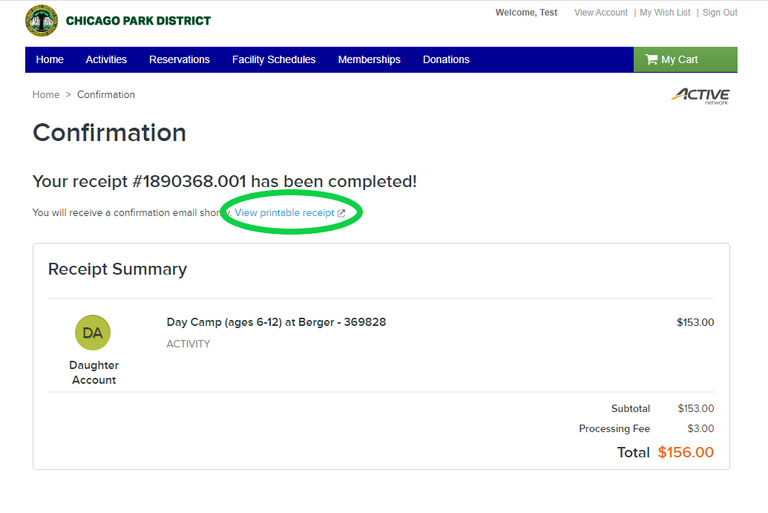
3. Your registration is complete! Click the "View or Print Receipt" button to get a copy of your full receipt for your records.
|
Image
|
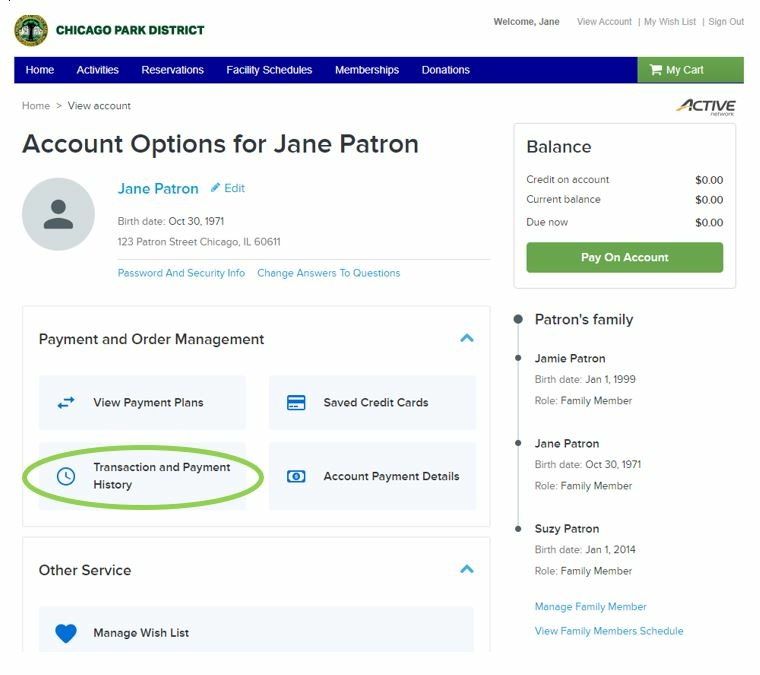
To review previous transactions and/or programs you have registered for, follow the steps below:
1. Click here to login to an existing account.
|
Image
47a2.jpg?itok=qvcxaVII)
|
2. Click "Transaction and Payment History."
|
Image
|
1. Click here to login to an existing account.
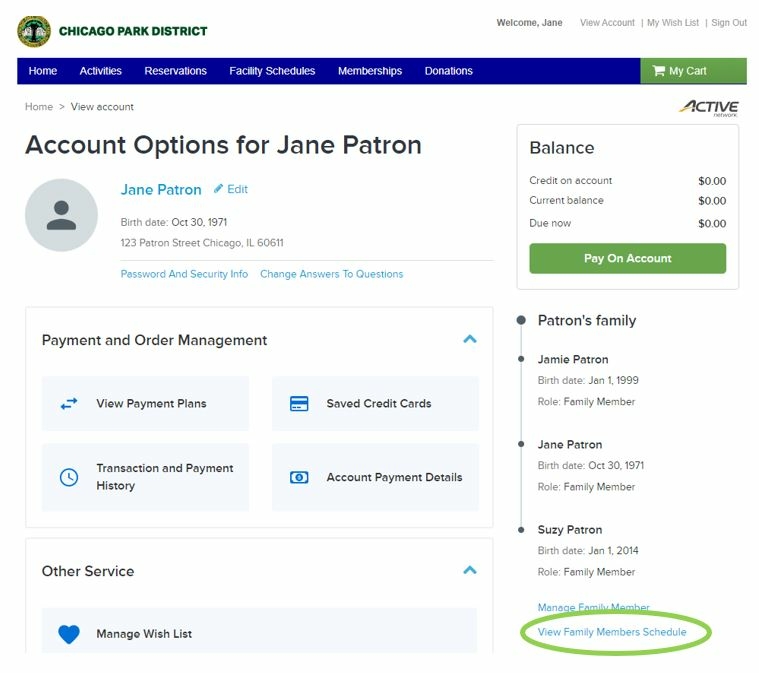
2. Click "View Family Members Schedule" in the right column.
|
Image
|
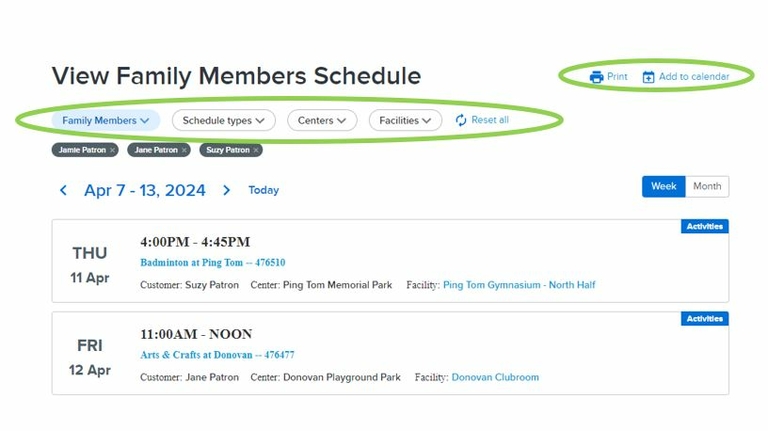
3. Use the filter buttons at the top to select which family members to include, and other optional details. You can click "Print" for a printable version, or "Add to Calendar" to add items to your digital calendar app.
|
Image
|
Additional Information
Click on the links below for further information.
- Registration Dates
View the registration dates for this year's program sessions. - Registration FAQs
Learn more by viewing frequently asked questions about program registration. -
Policies & Procedures
From financial policies such as the Refund & Cancellation Policy, to medical-related polices and more, many of the Chicago Park District policies and procedures are related to park programs. Take some time to review this important information.